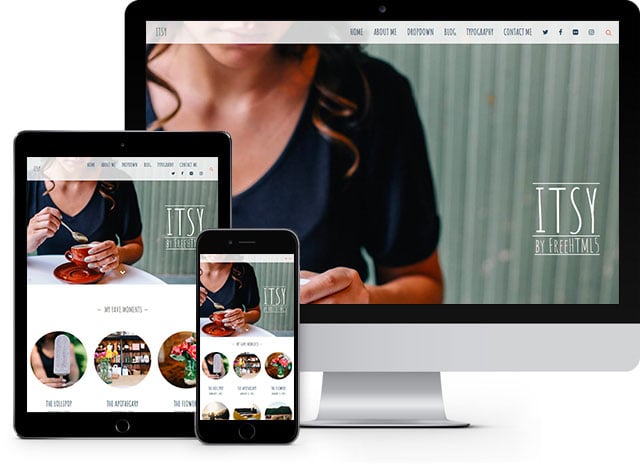
Personas

A Photo Blog Template created by Dzignine, has a neat layout, soft colour scheme and is easy to use

  • 4 column template with footer
  • Nice background image
  • Thumbnail display of Posts
  • Automatically resizes thumbnails
Personas Blogger Theme, Photo Template

Women Magazine Theme

Designed by Templates Novo Blogger, Women theme is a magazine-style 3 column template with a neat style and an interesting unique feature.

  • Horizontal slider to highlight articles
  • Summarised display of posts by categories
  • 3 column footer
Women magazine Blogger Template

People

Designed on the lines of People magazine site by MJ Bahring, its a cool theme to use for entertainment, lifestyle or celebrity blog

  • A 4 column template
  • Featured Posts slider
  • Photo Gallery to show the top images
  • Category-wise display of content on home page
People Magazine style Blog Template

Blogumus - Blogger Tag cloud Hack

A simple step-by-step guide to install this wonderful animated tag cloud to enhance the look of your blog

  • Easy installation
  • Customisable colours and font size
  • Changaeble speed of tag cloud rotation
Blogumus or Flash tag cloud hack for Blogger

Hide Ads on Page or Posts

A much-needed blogger hack that allows you to hide ads on a particular post or page of your choice created by GeekBlogger

  • Knock off unwanted ads from certain pages
  • Step-by-step instruction to execute code
Hide ads on particular posts or page blogger hack

Blogger Store, Shopping Template edit post

Posted by Bhavika On Friday, November 04, 2011
If you are looking to start an e-commerce or shopping site then this is the theme for you. Blogger Store is a better version of the shopping cart template designed by Java Templates and Zoom Template. The template includes dual dropdown menu bar, slider, grid and list style post view, animated shopping cart and more.
blogger store shopping template grid view
Once you have uploaded the theme, you can start with customising the template settings. In order to change the Shopping Cart code, go to Edit Html and search for this -

<script type='text/javascript'>
//<![CDATA[
/* SIMPLE CART SETTING
>>>>>>>>>>>>>>>>>>>>>>>>*/
simpleCart.email = 'rifkiblogger@gmail.com';
simpleCart.checkoutTo = PayPal;
simpleCart.currency = USD;
simpleCart.cartHeaders = ['name','thumb_image','Quantity_input','increment', 'decrement','Total'];
//]]>
</script>

Replace the email id marked in bold, and change the default currency 'USD' to your currency, please check the list of available currency in the download folder and save the changes. To proceed with the navigation bar, edit the links in the top menu from Edit Html and add your links here '#' and related text -

<ul id='top-nav'>
<li><a href='#'>Home</a></li>
<li><a href='#'>Category</a>
<ul class='sub-menu'>
<li><a href='#'>Category 1</a></li>
<li><a href='#'>Category 2</a></li>
<li><a href='#'>Category 3</a></li>
</ul>
</li>
<li><a href='#'>Contact</a></li>
<li><a href='#'>About</a></li>
</ul>
Similarly for the second menu bar, modify the links and categories in the below code -
<ul class='nav'>
<li><a class='current' href='/'>Home</a></li>
<li><a href='#'>Product Category</a>
<ul>
<li><a href='#'>Camera</a></li>
<li><a href='#'>Gadget</a></li>
<li><a href='#'>Electronic</a></li>
<li><a href='#'>Phone</a></li>
</ul>
</li>
<li><a href='/p/sample-page.html'>Sample Page</a></li>
<li><a href='#'>How To Use ?</a></li>
<li><a href='#'>Get it !</a></li>
</ul>

Coming to the slider that can be used to display your featured products, the default setting will show your latest posts. If you want to show posts by specific label/category, go to Edit Html and search for this line of code -

<script src='/feeds/posts/default?orderby=updated&amp;alt=json-in-script&amp;callback=featured_product' type='text/javascript'/>

Replace it with this one, and add the label/category -

<script type="text/javascript" src="/feeds/posts/default/-/YOUR LABEL HERE?orderby=updated&amp;alt=json-in-script&amp;callback=featured_product"></script>
blogger store template detail view
Before you start creating new posts you need to insert a code in Settings--Formatting--Post Template (this would be in the old blogger interface) in the new one its Settings--Posts.

<div class="item_image">
<img border="0" class="item_thumb" src="product_image.jpg" />
<span class="item_price">$00.00</span>
</div>

<div class="item_Description">
Descriptions...
</div>

Now you create a post, put in a product title which will also be the product name on ShoppingCart, add an image (preferred size is 140x140), copy the image URL and paste it in the below code, add the product price, description and you are set to publish.

<div class="item_image">
<img border="0" class="item_thumb" src="http://example.com/product_image.jpg" />
<span class="item_price">$00.00</span>
</div>
<div class="item_Description">
Product description.
</div>

There is an animated shopping cart button in the second menu bar that shows the total items and price, on clicking on it detailed view of the products purchased pops up.

Download the Blogger Store, Shopping Template
edit post

1 Response to "Blogger Store, Shopping Template"


Post a Comment

Put a Game on Your Blog!

SteamBirds Bubble Tanks Tower Defense Full Moon The Several Journeys of Reemus : Chapter 1 Death RC Chibi Knight Roadkill Revenge Crazy Hangover Pixel Purge

    Requests

    Recent Templates

    Recent Comments

    Video Guides